Fault cases
A fault case is the core of FaultNet. It's a structured record of a vehicle problem which includes everything from the initial symptoms through to the fix with photos, videos, DTC codes and a full timeline along the way.
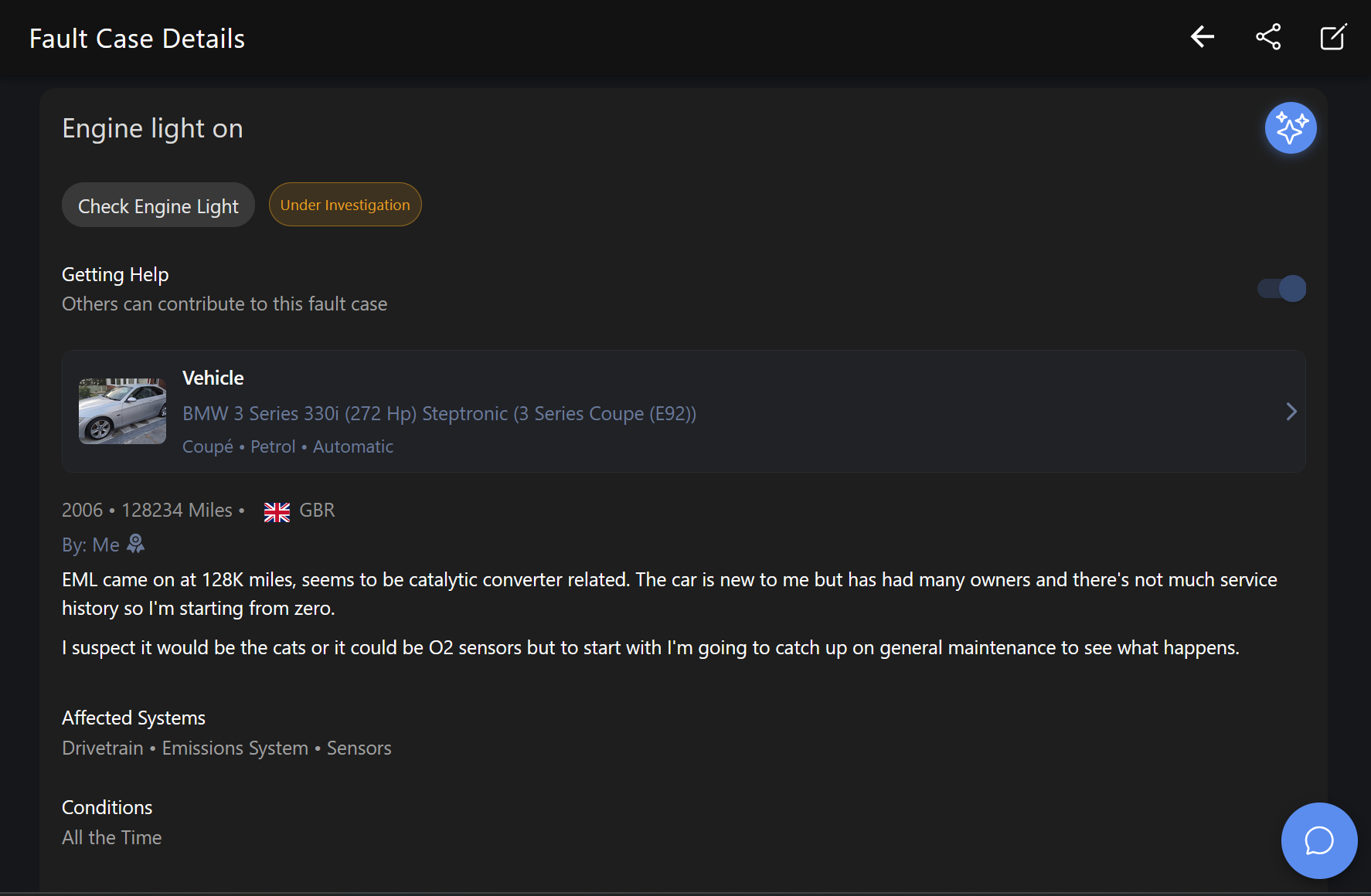
Creating a case
- Tap Cases in the bottom nav
- Tap the + button
- Fill in the details:
| Field | Description |
|---|---|
| Title | Short, descriptive — "Engine misfire on cold start", not just "misfire" |
| Category | The type of fault: Engine, Transmission, Brakes, Electrical, etc. |
| Vehicle | Which car from your garage this case is for |
| Year / Mileage | The vehicle's year and current mileage when you first noticed it |
| Country | Where you're based — helps others searching by region |
| Symptoms | What you actually experience: the sounds, smells, behaviours |
| Conditions | When does it happen — cold start, idle, under load, at speed? |
| Systems | Which vehicle systems are involved — Engine, ABS, Suspension, etc. |
| DTC codes | Any OBD2 fault codes you've pulled |
| Allow others to contribute | Whether other FaultNet users can add entries to your timeline and run AI analysis |
Editing a case
From the case details page tap the menu (top-right) and choose Edit case to update any field.
Photos and videos
Adding photos
Scroll to the Photos section on the case details page and tap + to upload images. Tap any thumbnail to open the full-screen gallery.
Photo limits
- Standard: 2 photos per case
- Pro: up to 8 photos per case
Adding videos
Scroll to the Videos section and paste a video link (YouTube, Vimeo, or a direct video URL). Videos are embedded in the case and show a thumbnail.
Video limits
- Standard: 1 video per case
- Pro: Unlimited videos per case
Following a case
You can follow any public case to keep track of it. Tap the Follow button on the case details page.
Follow limits
- Standard: follow up to 2 cases
- Pro: follow unlimited cases
Pro users can also receive email notifications when followed cases are updated.
Sharing a case
Every case has a Share button that copies a public link to your clipboard. Anyone with the link can see the case, they don't need to be logged in.
Resolving a case
When you've cracked it:
- Open the case
- Tap the menu and choose Resolve case
- Choose a resolution type
- Describe what the root cause was and what fixed it
- Save
Resolved cases show a green status badge and are still fully searchable. They're often the most useful cases for others.
Reopening a case
If a fault comes back after you marked it resolved use Reopen case, the case reverts to Investigating status and you can continue building the timeline and chasing the fault.
Deleting a case
Choose Remove Fault Case. A case creator can delete their own cases but only if it isn't resolved.